
Practical guide
Back up your local data
Find your save folder, make an independent copy, and understand the restore path for current profiles.
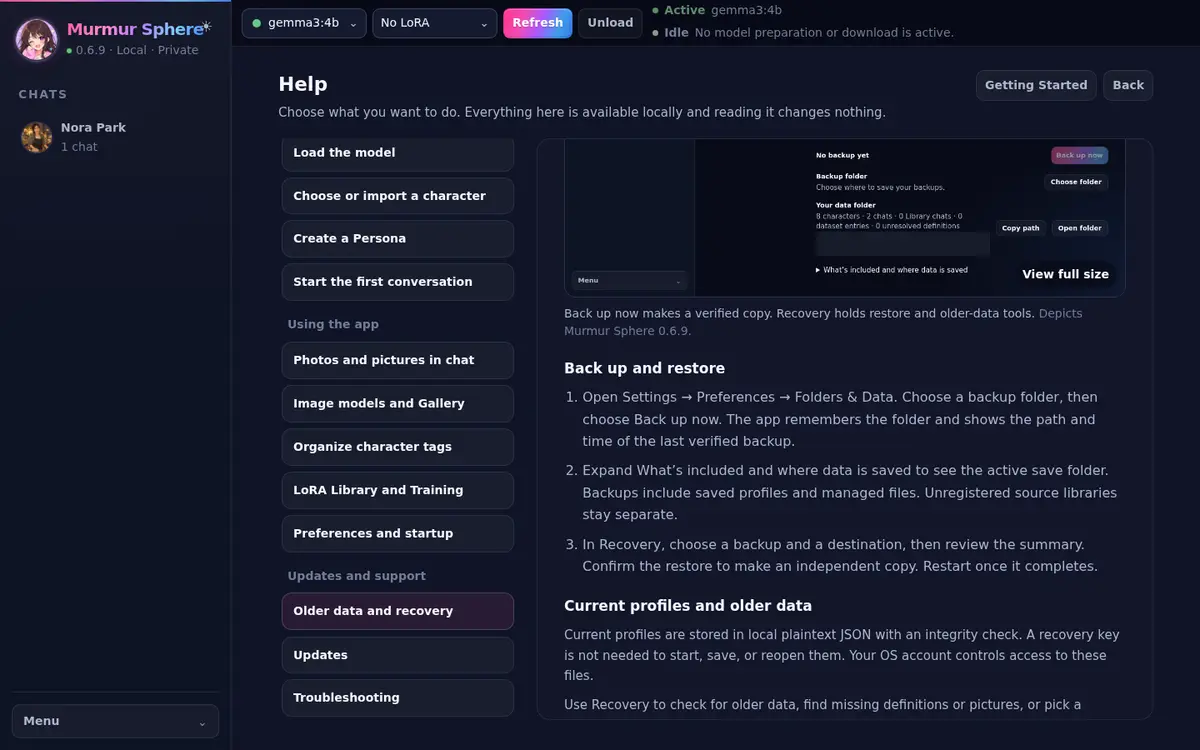
Steps
Follow in order.
- 1
Open Settings → Preferences → Folders & Data to find the active save folder. Current profiles do not need a recovery key.
- 2
Choose an independent backup folder and select Back up now. The app verifies the copy and shows where it was saved.
- 3
To restore, open Recovery in Folders & Data, choose a backup and destination, review the summary, then restart the app when the restore completes.
- 4
Protect backups as local plaintext under your OS account. Older encrypted profiles have a separate legacy recovery path.
More help