
Murmur Sphere vs SillyTavern
Pick Murmur Sphere if you want to turn a character idea into a first conversation on Windows. Pick SillyTavern if you want several characters in the same scene, a lorebook for your setting, or your choice of model provider. Both can keep a conversation on your PC.
One café, two ways to write the scene
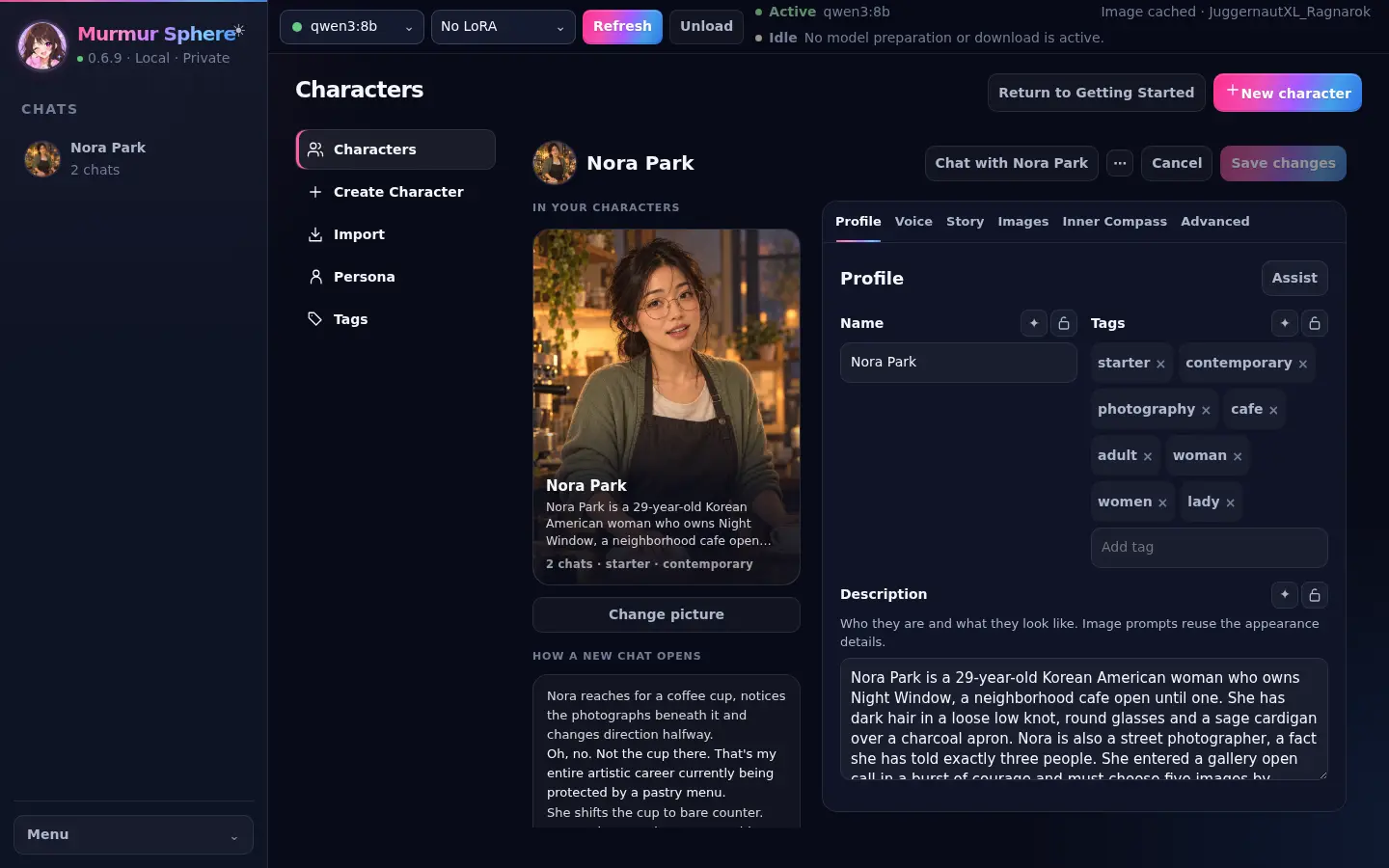
Nora Park runs the Night Window café. In her opening message, a pastry menu is protecting her photographs and a coffee cup is perilously close. You could ask what’s in the pictures. Or you could move the coffee and see which print she shows you first.
In Murmur Sphere, Nora is one of the included characters. Once your local model is ready, open her card and ask. To write your own photographer instead, give the character editor a premise and let the model draft an opening. You can keep the line you like and rewrite the rest. See how character drafting works.
Now suppose a gallery owner walks into the café looking for a missing print. In SillyTavern, you can put the owner and the photographer in a group chat and choose who speaks next. Give “Night Window” a World Info entry and a mention of the café can bring its backstory into the prompt. If that kind of ensemble scene is what you came to write, we’d choose SillyTavern.
What you do in each app
| Task | Murmur Sphere | SillyTavern |
|---|---|---|
| Chat locally for free | Run Ollama on your Windows PC. No Murmur Sphere account is required. | Connect a local backend such as Ollama or KoboldCpp. You can also choose a hosted provider. |
| Choose who’s in the scene | Edit a character’s card and opening. An optional Persona describes the role you’ll play. | Write a card and choose a user persona. For an ensemble, put several cards into a group chat and link a lorebook to the scene. |
| Bring a card you own | Import a supported PNG or JSON character card and review its fields. | Import a card or export one to try in another app. Your existing chat stays in SillyTavern. |
| Draft from an idea | Give your local model a premise. It can draft the card or revise a single field for you to review. | The character editor gives you direct control over the description, scenario, greeting and dialogue examples. |
| Load a chat model | Install Ollama separately. In the app’s Model Library, choose a compatible model and select Use. | Connect the backend you prefer. Model loading depends on that backend. The TabbyAPI extension offers in-app loading. |
| Train on favorite replies | Review examples from a chat and train a LoRA, a reusable adapter. You need compatible original model weights and an NVIDIA GPU with CUDA support. | Example dialogue can guide replies immediately. To train an adapter, use a separate trainer and a backend that supports it. |
| Bring writing from PolyBuzz | Import selected conversations for training review. The separate character import lets you bring over a character for a new chat. | For a portable character, use a supported card file. SillyTavern’s standard card import does not turn PolyBuzz conversations into training data. |
Who gets to read the scene?
With Murmur Sphere’s public Windows app, Ollama generates replies on your PC. Downloads and update checks use the internet. The saved profile is plaintext, so someone with access to those files can read your chats. Read how local storage works.
SillyTavern can use Ollama on the same PC, too. If you select a hosted provider, that provider receives the prompt, which can include the character’s description, recent messages and active lore. The connection you choose matters even when the chat window opens on your own machine.
Already have a favorite character in SillyTavern?
Try one scene before moving a library. Export a copy of a character as a supported PNG or JSON card. In Murmur Sphere, open Characters → Import → Cards & folders and check the greeting. Your old conversations, extensions and settings stay in SillyTavern. Follow the card import guide.
Try the same opening line with the same local model in both apps. You’ll learn more from editing that character and writing the next three replies than from counting features.
Murmur Sphere’s public Windows build has private source code and an unsigned installer. SillyTavern is open source and also runs on macOS and Linux. Check the Windows setup or see Murmur Sphere’s installer details.
Sources
We compared Murmur Sphere 0.6.9 and its local LoRA trainer with SillyTavern’s official documentation. Reviewed November 22, 2026.