Before the steps
Pick the right import path
Start with the character definition, not a full account migration. If another app can export a portable character card, keep the original file and import a copy into Murmur Sphere. The current release also has a separate PolyBuzz character flow. Chats, settings, and other app-specific extras do not automatically travel with a card.
01From a card file
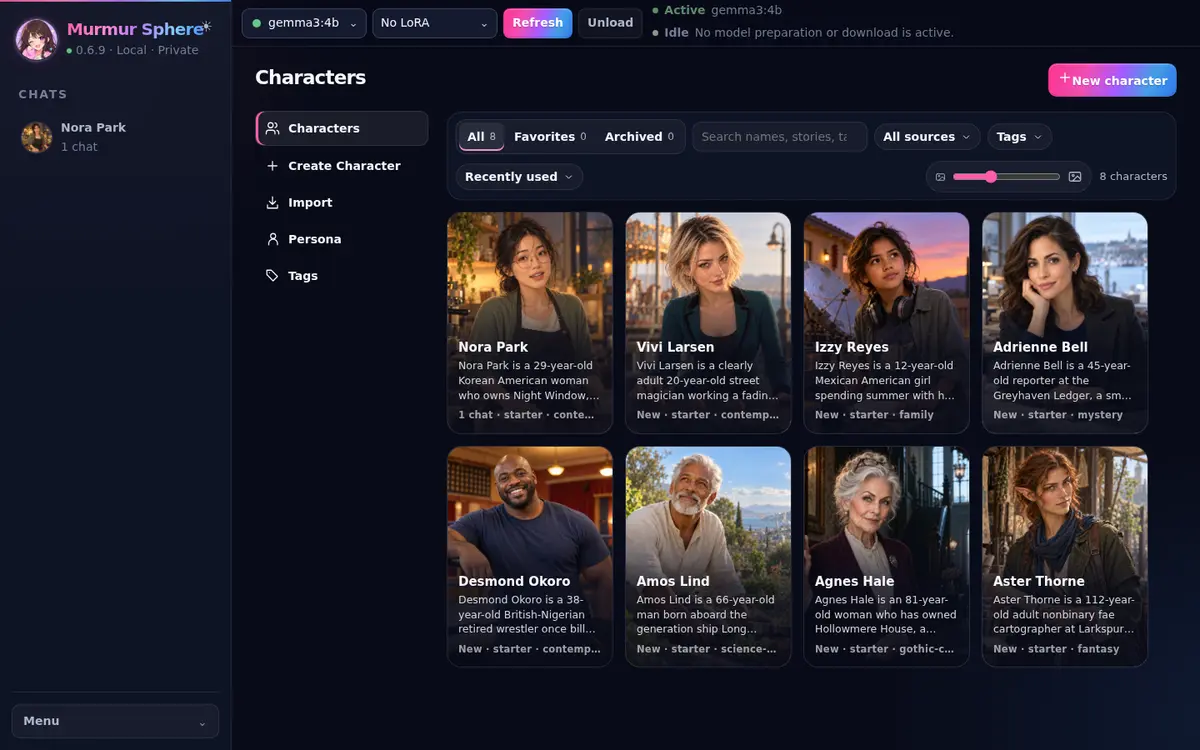
For an app such as SillyTavern, use its character Export action to save a supported PNG card with embedded character data or a JSON character card. A portrait saved as an ordinary PNG is only an image. Open Characters → Import → Cards & folders, choose or drop the card, inspect the fields, and confirm Import character.
02From a collection
Add a folder to scan supported card files together. Review skipped files and import errors instead of assuming every file will work. Keep the originals until you have opened the imported characters and checked their opening messages and pictures.
03From PolyBuzz
The PolyBuzz tab uses a browser bridge in Chrome or Edge. Follow its four setup steps, open the desired characters in your signed-in browser, then select the captured characters to import. PolyBuzz chats are handled separately in LoRA Training → Import chats; they do not restore chat history into ordinary conversations.