Practical guide
Make your first chat picture
Set up local image generation, use the chat camera and send the finished picture into the conversation.
Steps
Follow in order.
- 1
Open Settings → Image Model Library → Set up image generation. Wait until the Invoke engine is running. For a photo-style result, choose Add image models → Recommended styles → Realistic and finish the model download. Skip setup if that style is already ready.
- 2
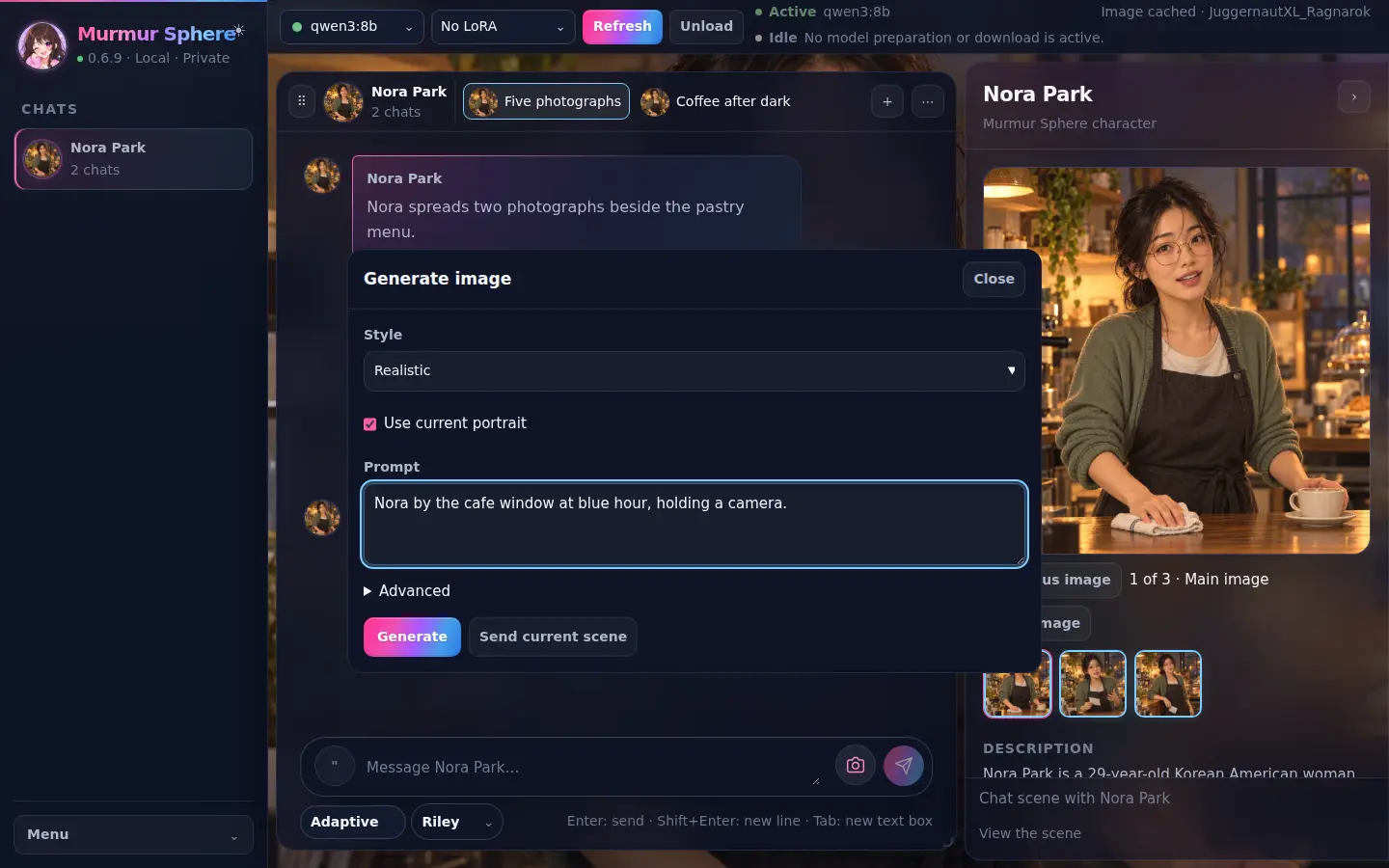
Open Nora Park’s conversation and choose the camera beside Send. Choose Realistic. For a close-up of an object, turn off Use current portrait. Type a prompt such as “An oat latte with extra foam on a café counter.”
- 3
Generate the preview. Once you see the finished picture, choose Send to chat. The picture appears in Nora’s conversation.
- 4
To illustrate something that already happened, choose Picture this beneath that message. You can also ask a character to send a picture in conversation.
More help